1
Have an idea
Start in ordinary words. You do not need the technical vocabulary first.
See how real projects get made with ChatGPT, Codex, voice conversations, screenshots, testing, and one clear next step at a time. The current flagship example is EasySSLSetup—a much bigger technical build that went from research to a working public beta.
Prefer talking? When you use voice, you can simply describe what you see, do one step, and come back to the conversation.
You do not need to sit down and write a perfect technical prompt. In a voice conversation, explain the problem the same way you would explain it to another person: what you are looking at, what happened, and what you are unsure about.
Then do one thing. Come back and say what happened. That natural back-and-forth is part of the One Click at a Time method.
Keep the human job simple even when the technology underneath becomes complicated.
Start in ordinary words. You do not need the technical vocabulary first.
Use a screenshot when the next button or setting is unclear.
Get one understandable action instead of a wall of instructions.
When the project needs coding work, let Codex inspect and change the project files.
Check what changed, verify it works, then move to the next step.
“This is what I see. Tell me only what to click next.”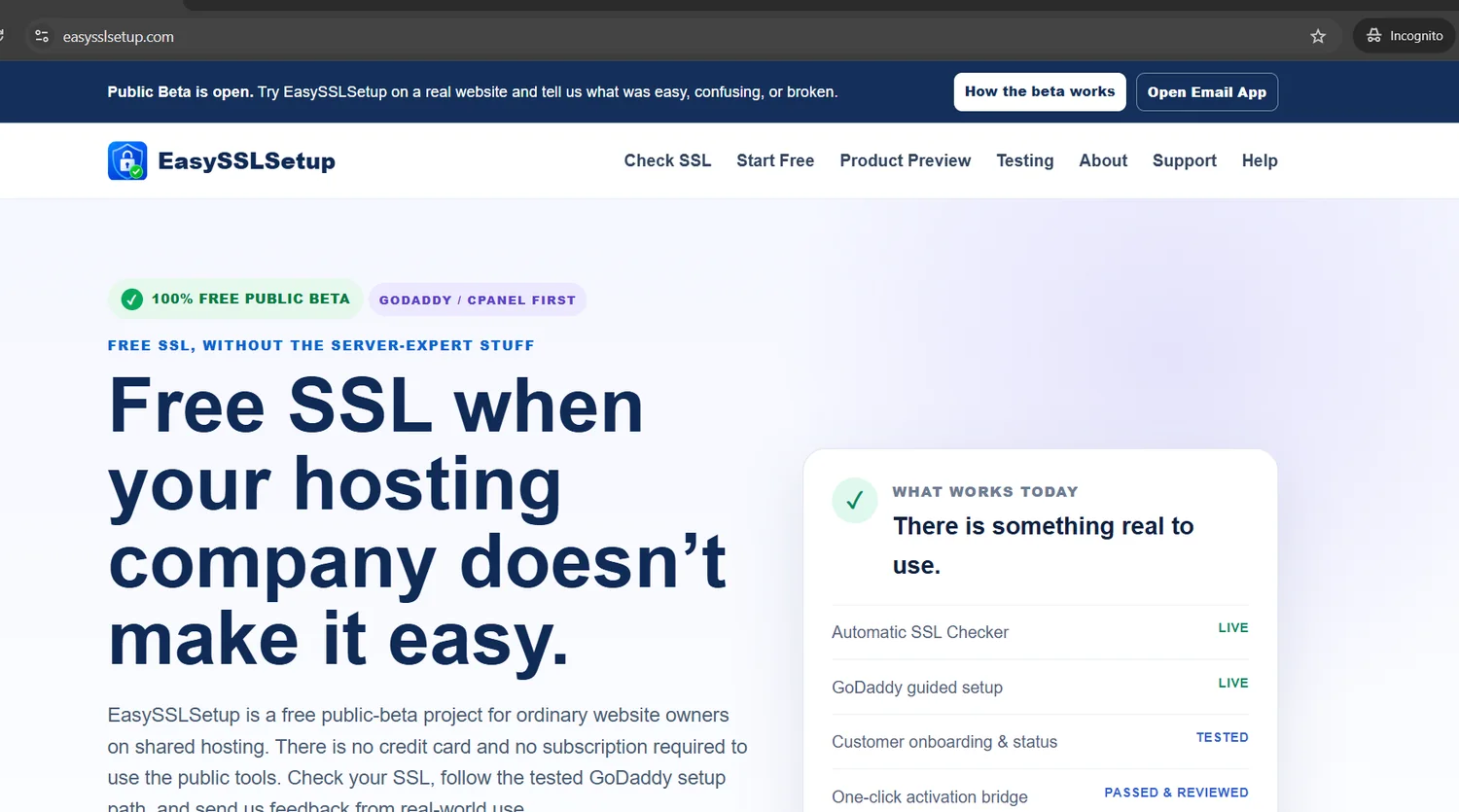
EasySSLSetup became the clearest example yet of the One Click at a Time method. It involved product research, website design, PHP development, cPanel integration work, security boundaries, staging certificates, automated tests, signed handoffs, installer work, activation-bridge testing, visual review, public-beta deployment, branding, and marketing.
The same method can be used for a technical product, a small business, an app, graphics, or ordinary troubleshooting.
From domain and hosting to files, SSL, publishing, updates, and fixes.
Beginner pathUse Codex when AI needs to inspect, edit, test, or repair the actual project files.
EasySSLSetup featuredTurn an idea into an Android project, test it, fix errors, and get it onto a phone.
Real-project lessonMake logos, social ads, site graphics, flyers, and stronger image prompts.
Visual projectsError message? Broken page? Wrong menu? Screenshot it and solve one step at a time.
No guessingUse AI for the site, tools, graphics, promotion, and practical systems around the idea.
Idea → launchEasySSLSetup remains the flagship technical and Codex case study. These projects show how an ordinary idea, real information, and one verified decision at a time can grow into websites, tools, apps, marketing, and business systems.
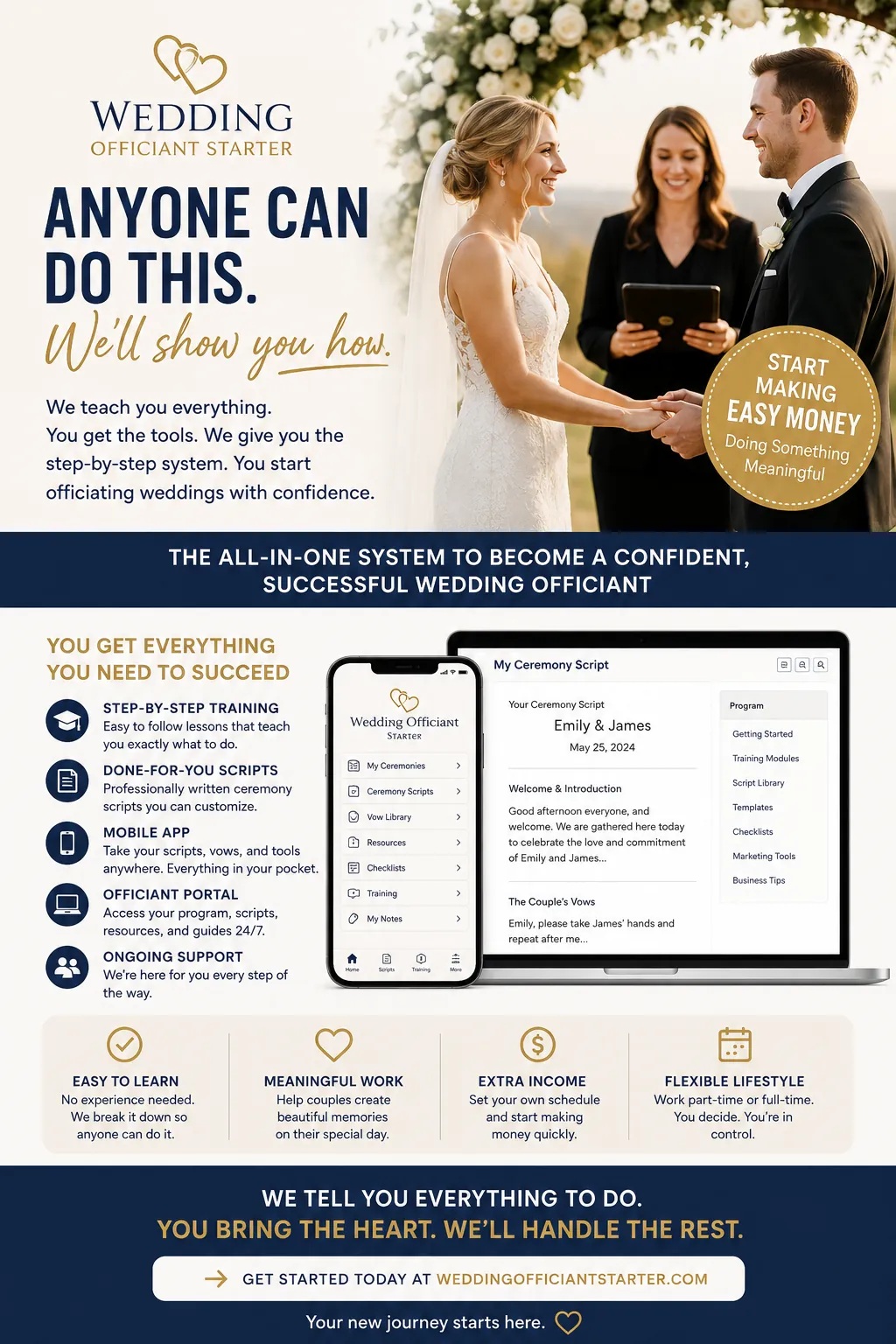
A business idea grew into a public sales and training site, paid Student Center, step-by-step modules, a full Wedding Script Builder, web and phone tools, Android and Windows versions, checklists, questionnaires, downloads, payment access, customer-finding guidance, and a finished promotional video.
What this provesA simple business idea can grow into a website, private member system, software tools, apps, training, payment flow, and marketing.
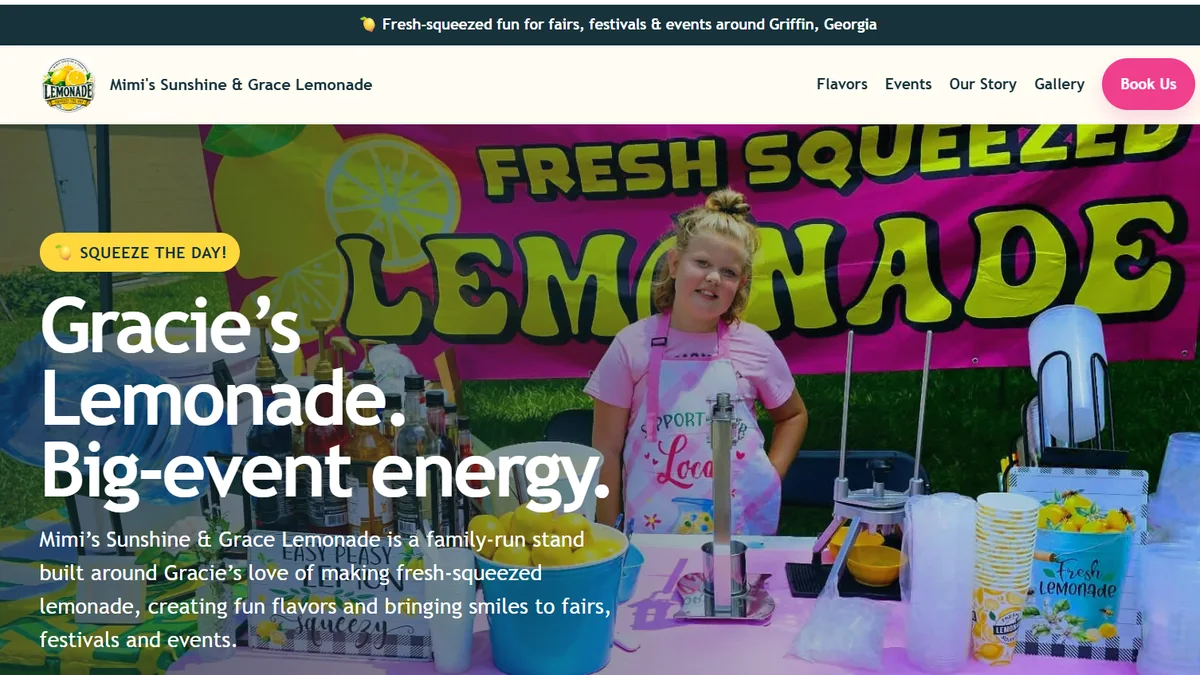
Real photos and business information became a custom branded website with flavors, specialty drinks, events, gallery and story content—then grew into a Facebook presence, marketing materials, promotional planning, and an approximately two-minute video using the business’s real photos and footage.
What this provesYou do not need a perfect website plan. Real photos, useful information, conversation, and step-by-step decisions can become a complete presentation.
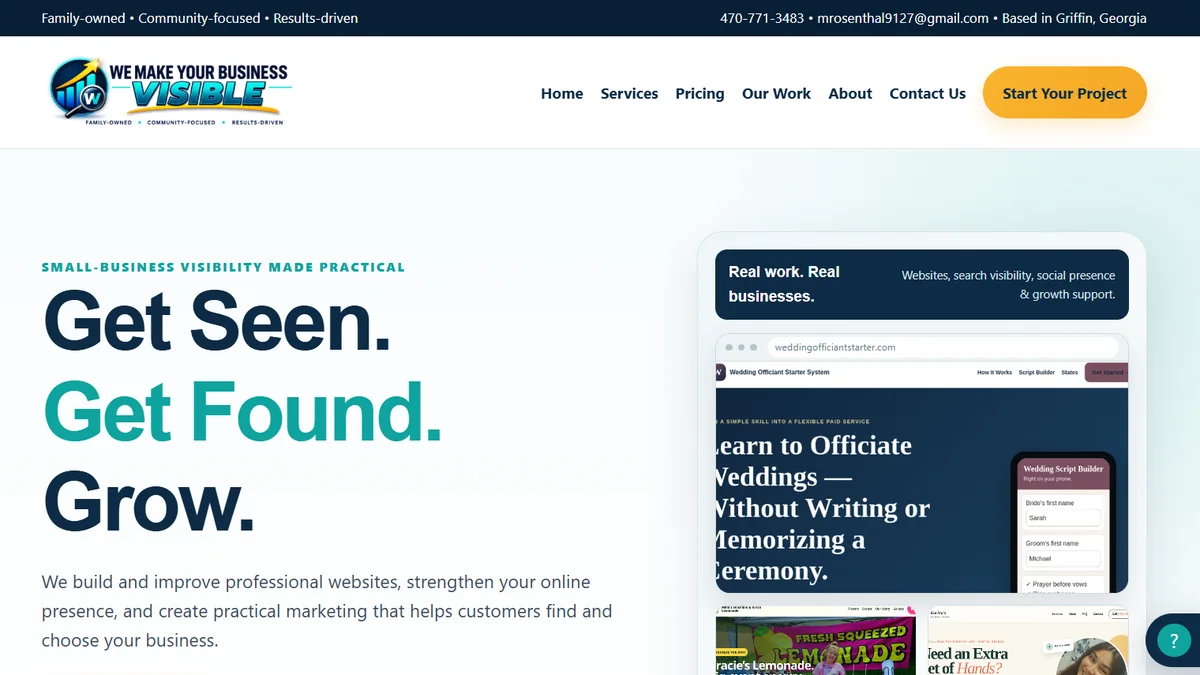
A public service-business website with pricing and packages, an Our Work portfolio, a Free Website Preview sales process, client intake and onboarding, private/admin tools, and a broader business and marketing support structure.
What this provesThe method can build not only a website, but also the practical sales, onboarding, administration, and support systems around a service business.
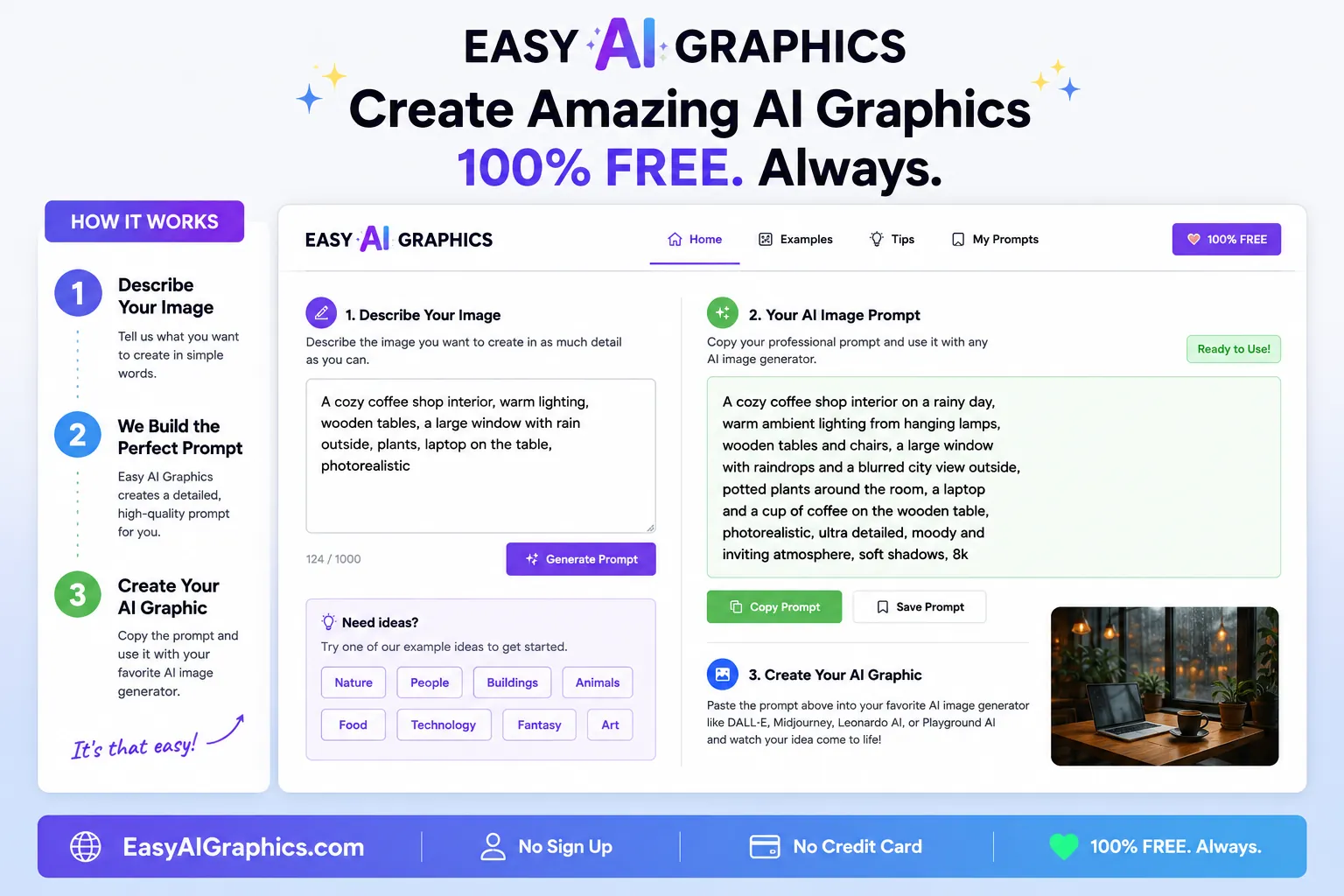
An AI graphics and prompt idea expanded into a useful collection of website tools, installable and Android/app work, business-promotion builders, and creative troubleshooting tools.
What this provesA focused idea can keep expanding into a practical collection of web, mobile, promotional, and creative tools.
This invitation-only pilot has progressed beyond ordinary pages into application workflows: business profiles and audits, evidence and findings, action plans, Messenger and Website Content Builders, versioned approvals, background jobs, a pilot workflow, and local launcher and browser-extension work.
What this provesThe same one-step-at-a-time method can progress beyond websites into real application workflows and software systems.
Private pilot: This is in development, is not a fully launched public SaaS product, and has no public demo link.
The method also works for familiar local services—not only software and technical products.
A focused local-service website with clear calls to action, promotional graphics, and the technical work needed to launch.
Visit the live project ↗A local service website that organizes a wide range of practical help into clear services, trust-building information, and simple contact paths.
Visit the live project ↗Smaller problems still demonstrate the same habit: show what happened, take one clear step, and verify the result.
A visual example showing how iterative AI work can reshape an ordinary photo into a finished portrait.
See the transformation →A real everyday problem solved with screenshots, research, and changing the plan when the phone menus differed.
See the solution →A phone warning became a reusable step-by-step lesson instead of stopping the project.
See the Android lesson →The tools overlap, but EasySSLSetup shows why the distinction matters on a serious build.
Useful for research, product decisions, explanations, screenshots, deployment guidance, writing, branding, marketing, and keeping the next action understandable.
Useful when the work belongs inside the codebase: inspecting files, implementing features, adding tests, reproducing failures, fixing code, and preparing candidates for review.
The project moved through multiple controlled pieces rather than one giant “make it automatic” change.
Codex features, browser integrations, plans, and limits can change. Review AI-generated code and test before publishing changes to a live site.

The point is not that AI magically does everything. The point is that somebody without a programming background can keep moving: explain the goal, show the screen, use the right AI tool for the job, review the result, and make the next decision.
EasySSLSetup is now the flagship example because it shows that method on a project with real technical depth.
Start with the EasySSLSetup case study. It shows the messy middle—research, coding, tests, failed attempts, review, deployment, and the public beta—not just the finished screenshot.